
Advertising through Google Ads without knowing what happens after clicking the ads would be similar to evaluating a salesperson’s work based solely on how many people he communicates with. While you have data on the number of clicks and conversions achieved through your campaigns, you probably don’t have enough information on customer behaviour behind those numbers.
It’s here that integration of Google Ads and GA4 comes in handy.
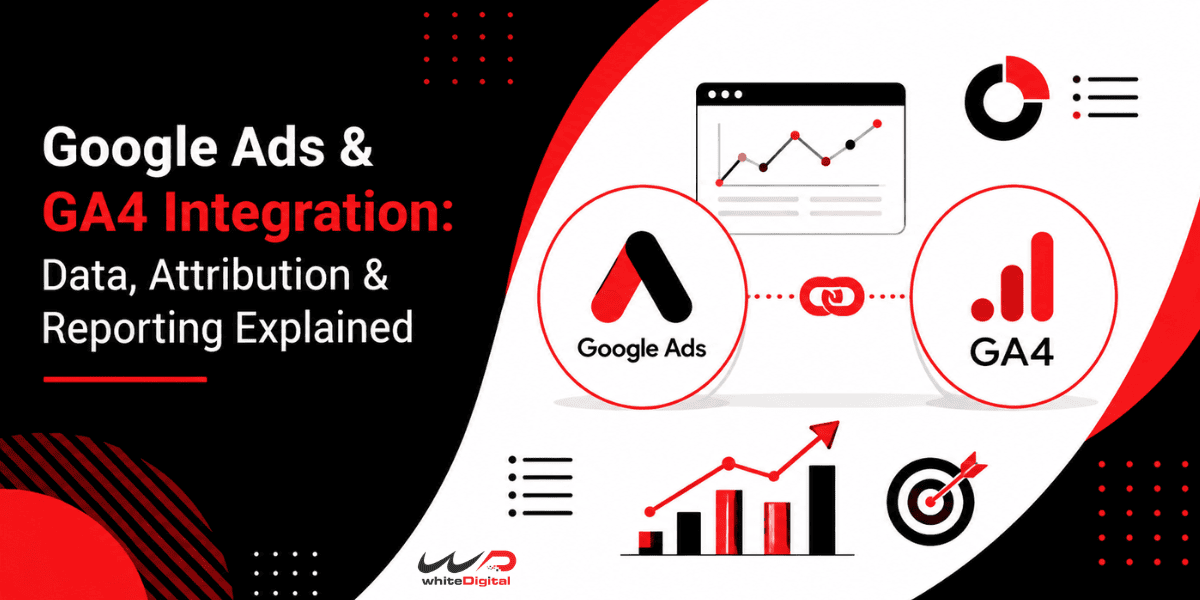
Once Google Ads is linked with GA4, you get closer to unification of data related to advertising and user behaviour on your website or app. Google Ads gives you an opportunity to evaluate campaign performance and results of advertising, while GA4 tells you more about what users do on your website.
But one thing that usually bothers marketers is that conversion numbers in Google Ads and GA4 don’t coincide. It doesn’t mean that there’s something wrong with tracking. The two systems employ different approaches to attribution and reporting.
Why Connect Google Ads to GA4?
Google Ads tells you how your advertising campaigns are performing. GA4 provides you with information about the overall user interactions on your digital assets.
Once this is done, you will be able to track your Google Ads campaigns and cost metrics in GA4, and use GA4 audiences for remarketing campaigns in Google Ads if certain settings are applied.
Integration can assist with answering the following questions:
- Which campaigns drive traffic to the site?
- What do the users do once they click the ad?
- Which landing pages get the interaction from users?
- Which campaigns are responsible for conversions?
- What happens between the ad click and the conversion?
It gives marketers more data besides clicks and conversions within Google Ads.
How to connect Google Ads with GA4?
To get advertising and website behaviour together, connect Google Ads to GA4. This will help advertisers understand what users do after clicking on to your client’s Google Ads and optimize according to it.
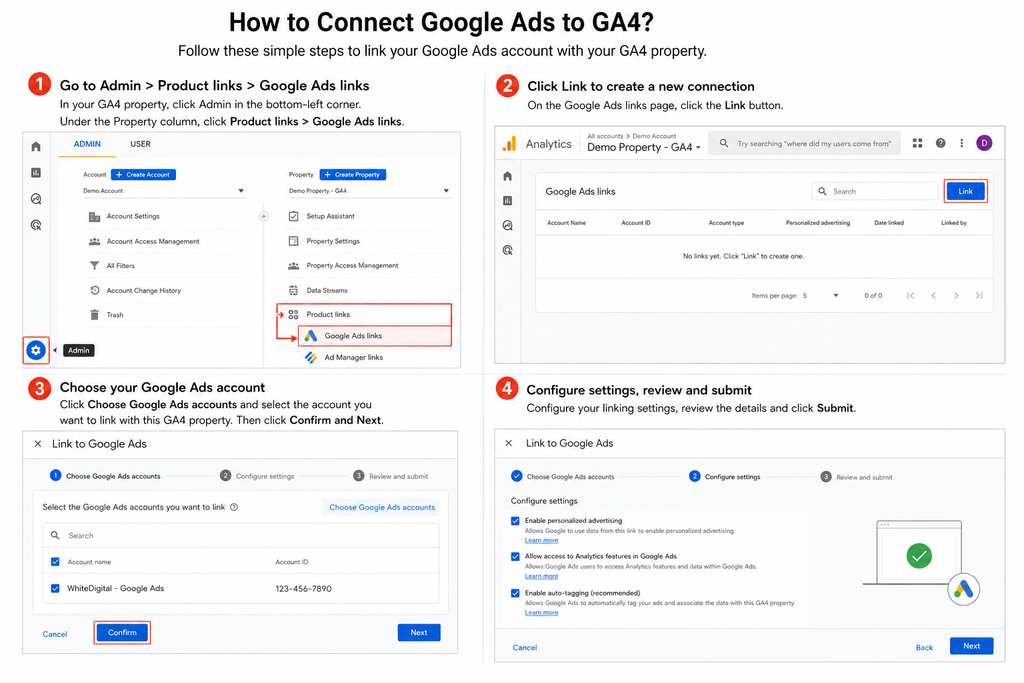
Before you get started, it is important to have Editor-level access to GA4 and admin access to your client’s Google Ads. Then follow these upcoming steps
Step 1: Get onto the Google Analytics 4 admin page
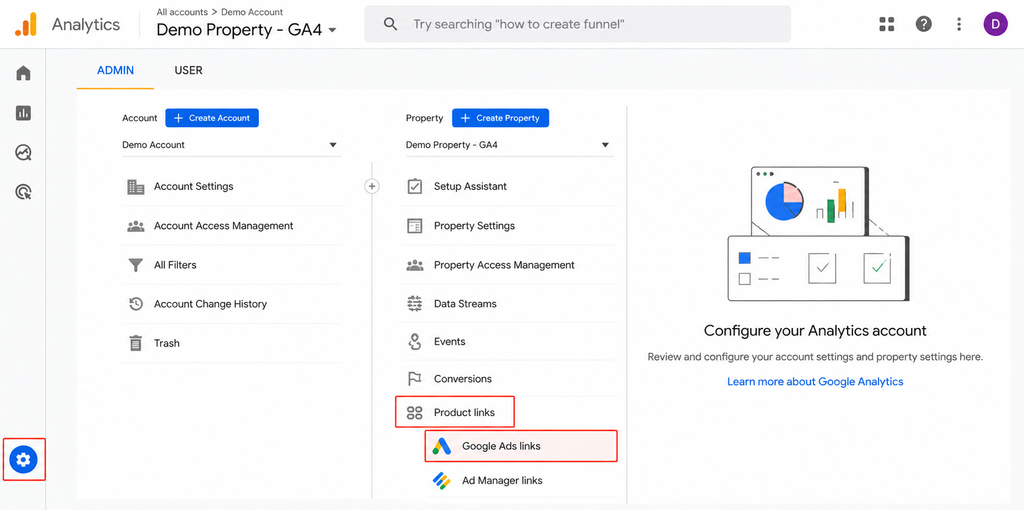
- Log in to the GA4 account and click the correct property
- Open Admin and click the Product link. From there, click the Google Ads link
- This is where the advertisers will be able to manage the connection between Google Ads and GA4
Step 2: Click on the link
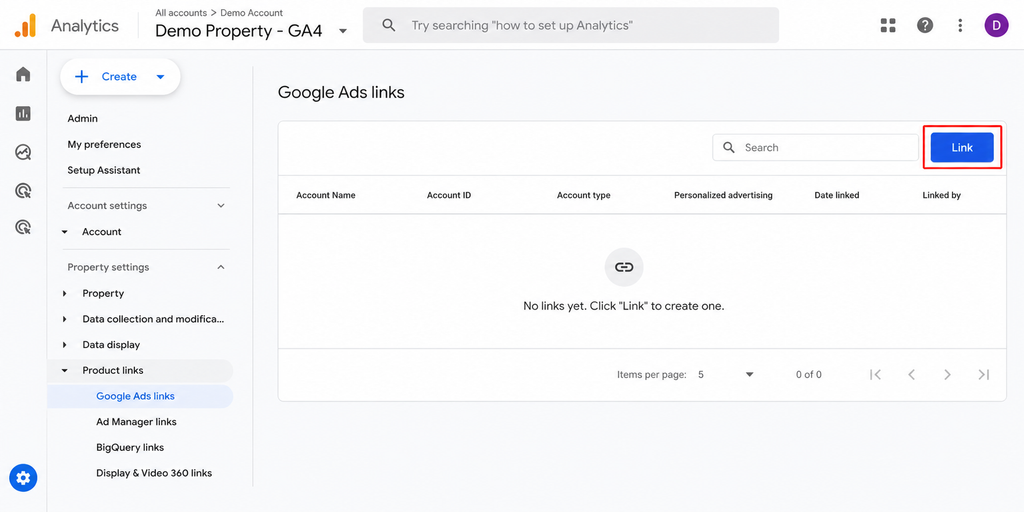
- Click on the Link option from the Google Ads page. This will create a new connection.
Step 3: Choose your client’s Google Ads account
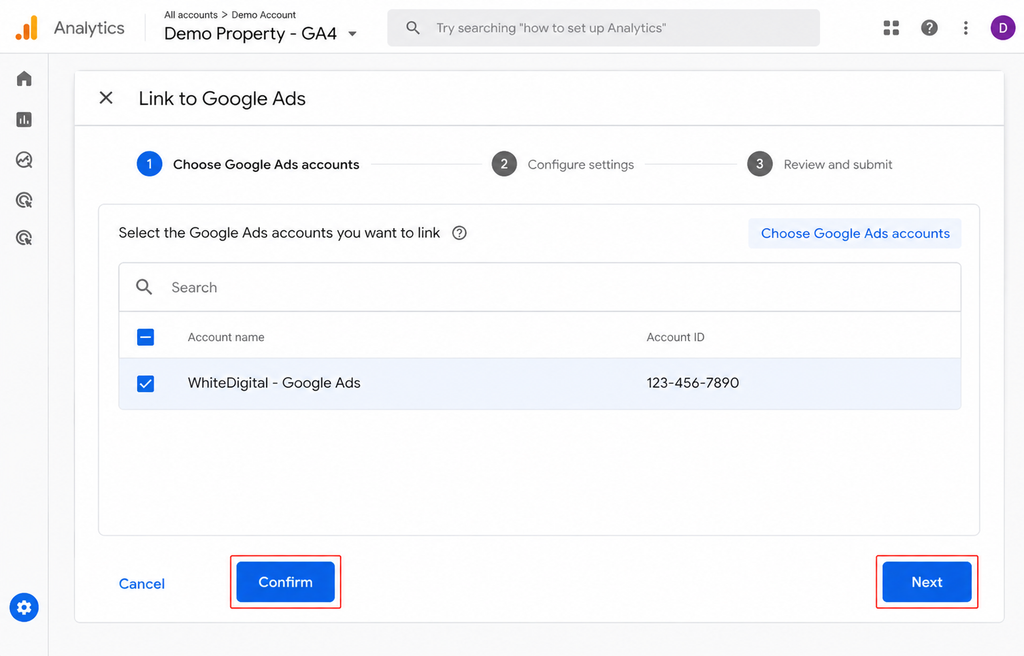
- Click Choose Google Ads account
- Select the Google Ads account that needs to be merged with GA4.
- In case the Google Ads account doesn’t appear, check access to Google Ads
- Select the Google Ads account
- Click Confirm and click Next
Step 4: Configuration
There will be several settings before configuring your linking. Here are a few things to check before connecting
- Check if the Personalized Advertising settings are enabled
- Click Allow to get into the Google Ads account to work with the analytics
- Make sure to enable Auto-tagging for the Google Ads accounts you have selected
- Click Next
Step 5: Review the settings and proceed to submit
- Review the settings you have made
- Click Submit only after properly checking it
This will take you to a page where it says successfully connected Google Ads to GA4.
Step 6: Check Active status
Once you have linked it is important to check if the account is in active status. To do that
- Go to Admin
- Click Product links
- Select Google Ads links
In that there will be a list and the selected Google Ads account should appear in it. This will take up to 48 hours to appear in this list.
Ads vs GA4 Conversions: Why Are They Different?
One of the most frequent questions people have about Google Analytics is:
“Why do I see 100 conversions in Google Ads but 75 conversions in GA4?”
It usually depends on the definition of a conversion used by the two platforms.
Google Ads is meant to measure the performance of advertising campaigns, and its conversion report is based on interactions with Google Ads and its effect on the conversion actions specified in the account.
GA4 is a tool to analyze the customer journey on websites and mobile apps. Attribution reports in GA4 are based on the analysis of different marketing channels in accordance with the chosen attribution model in the report.
That’s why the same customer journey leads to different numbers on two platforms.
Attribution in GA4
Attribution in GA4 determines how the conversion credit is to be divided among the different marketing touchpoints. Attribution in GA4 includes attribution reporting that assists in understanding how each marketing channel contributes to conversions.
Rather than focusing on the last interaction only, marketers can look into the whole journey of the customer.
Let us learn it better with an example,
A customer wants to buy a pair of shoes and he checks out your client’s website via Google Ads and check out your client’s website and leaves it. Later finds out your client’s website through an organic Google search and checks out more products from the website and purchases them.
The journey of the customer would somehow look like
Paid search -> Direct -> Organic search -> Conversion
In case the user interacted with several marketing channels before conversion, attribution allows determining the way the conversion credit would be split.
GA4 allows different ways of attributing and different views on reporting. The key thing is that attribution is not just about counting conversions, but rather about allocating the credit for those conversions.
It is especially relevant to long buying cycles, a combination of various traffic sources and customers interacting with several marketing touchpoints before buying.
Additional Information GA4 Offers About Google Ads Reports
Google Ads reports are great for optimizing campaigns, but GA4 adds more context to them.
Imagine that two campaigns deliver the same number of conversions.
Campaign A delivers 1,000 sessions while Campaign B – 500.
GA4 can also help analyze landing-page performance, user journeys, audiences, events, and conversion paths.
The key is not to replace Google Ads reporting with GA4. Instead, use both platforms for what they are designed to do.
How Should Marketers Leverage Both Platforms
One good way of approaching this would be giving a specific purpose to each platform.
Use Google Ads for:
- Optimizing campaigns
- Analyzing search terms and keywords
- Bidding
- Advertisement performance
- Conversion reporting in advertisements
- Allocating budget
Use GA4 for:
- Website and mobile application behaviour
- Journeys of the users
- Analysis of engagement
- Conversion pathways
- Cross-channel analysis
- Audience analysis
- Landing page performance
This will help prevent marketers from expecting identical numbers from both of these platforms.
Common Google Ads and GA4 Integration Mistakes
- The first mistake is expecting identical numbers in conversion.
Differences in conversion numbers between these two platforms are valid due to the differences between the models of attribution, counting techniques, reporting scope, and conversion setup.
- Another mistake marketers tend to make is treating all GA4 events as primary conversions on Google Ads.
Not all GA4 events are meant for bidding. A simple page view, scrolling of the page, or any other kind of user engagement is not necessarily a conversion, even if it can be helpful in analytics. Primary conversions should usually have business value. Marketers need to perform regular audits of their tracking settings. Coming to an end, Google Ads and GA4 are not mutually exclusive and should not be considered as two truths competing for validity. They are two different measurement systems, and combining them gives you the most valuable result.