

When I look at Google Ads reports, I always focus on search terms and match types. They show me how people find an advertiser’s business and whether the keywords in a campaign are pulling in the searches.
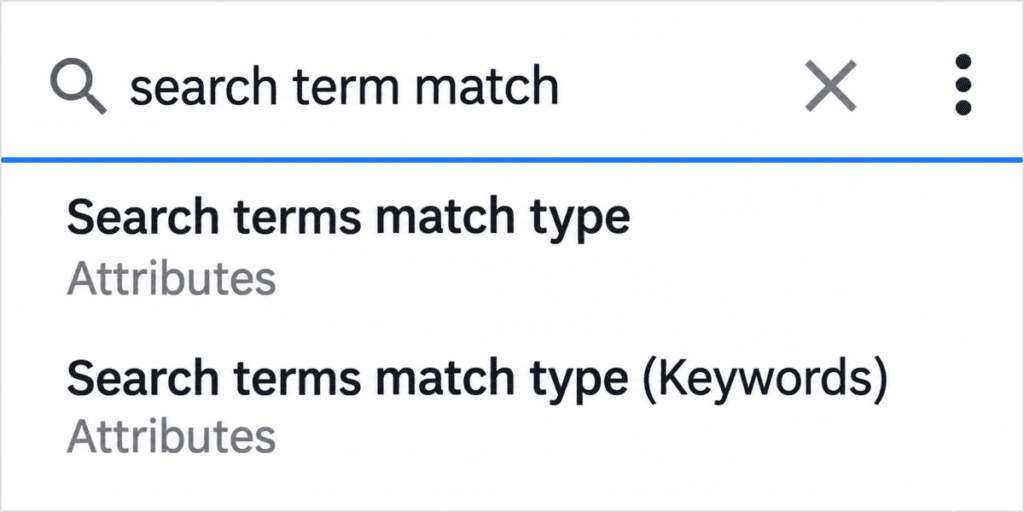
I recently noticed something in the Google Ads reporting interface. There are now two fields with the same name: Search terms match type and Search terms match type (Keywords).
At first, I thought Google had simply copied an existing reporting field. After digging, I learned that both fields serve different purposes.
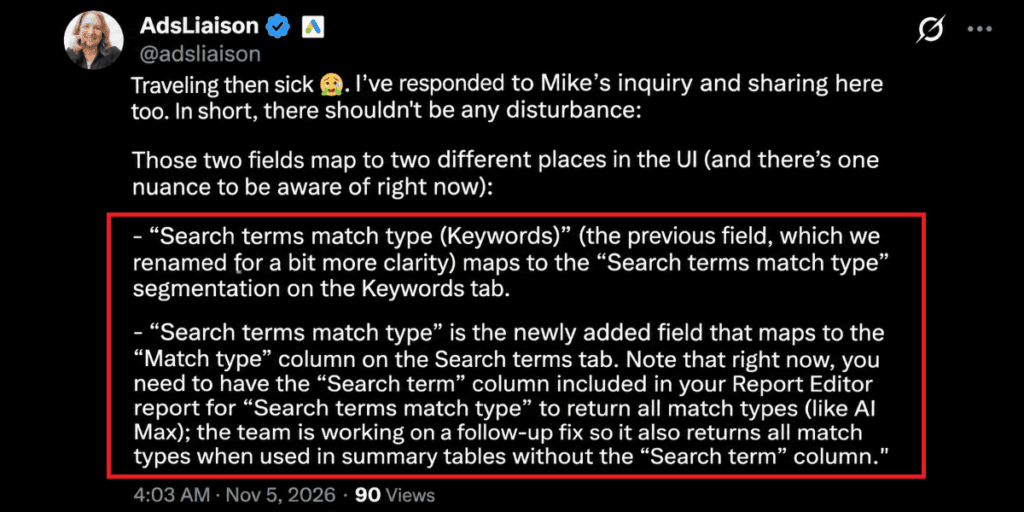
Google Ads Liaison Ginny Marvin explained that the two fields point to places in the Google Ads interface. This small change is important for advertisers who often analyze search campaign performance.
What Has Changed in Google Ads Reporting?
Google Ads has added a new reporting field called ‘Search terms match type’, while the older field has been renamed Search terms match type (Keywords).
Even though the names look almost identical, they belong to different reporting sections.
Here is how they work.
- Search terms match type (Keywords) – This is the reporting field, renamed for clarity. It points to the search terms match type segmentation in the Keywords tab.
- Search terms match type – This is the added field. It points to the Match type column in the Search terms tab.
In simple terms, Google is separating two reporting fields based on where their data comes from in the interface.
Why Google Ads Introduced Two Match Type Fields
When advertisers look at search performance, they often check both the Keywords tab and the Search Terms tab.
These sections give views of campaign activity.
The Keywords tab helps advertisers see how their targeted keywords are performing. The Search terms tab shows the searches that triggered their ads.
By giving reporting fields, Google lets advertisers know which match type information belongs to each view.
This difference also matters when analyzing campaign features, such as AI Max, where the reporting rules can differ from classic keyword‑based search campaigns.
Understanding Google Ads Match Type Fields With an Example
Suppose I manage a Google Ads campaign for a company that sells running shoes.
The advertiser has added keywords such as
- Running shoes
- Buy running shoes online
- Best running shoes
Now, when I review the account, I might visit two different sections.
1. Keywords tab
Here I want to see how the advertiser’s targeted keywords are doing and review the related match type information.
The field ‘Search terms match type (Keywords)’ matches the ‘Search terms match type’ segmentation in this tab.
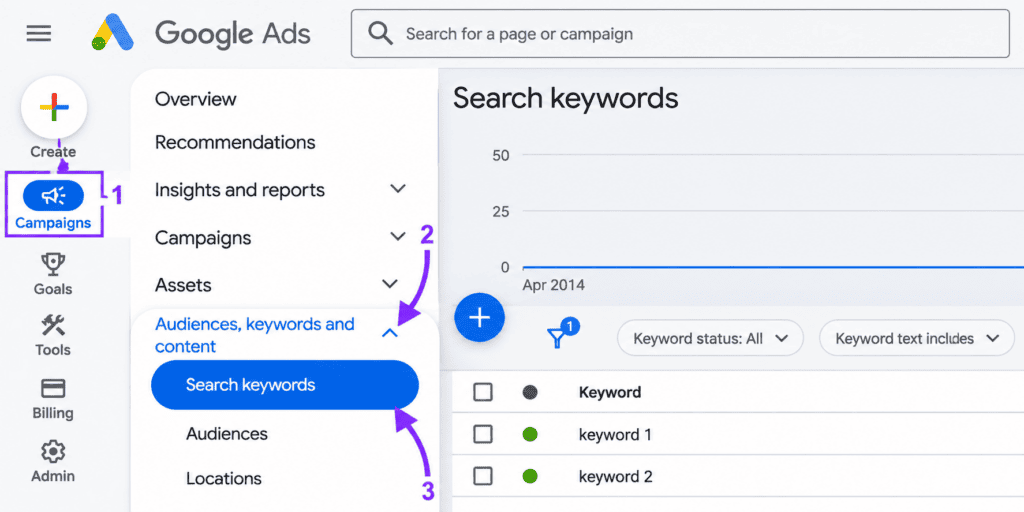
To reach the Keywords tab, go to Campaigns, choose Audiences, Keywords and content, and click Search keywords.
2. Search terms tab
Here I want to see what people actually searched for before clicking the ads.
The new search terms match type field matches the match type column in this tab.
So even though both fields mention search terms and match types, they are not interchangeable. Each one is linked to a reporting view.
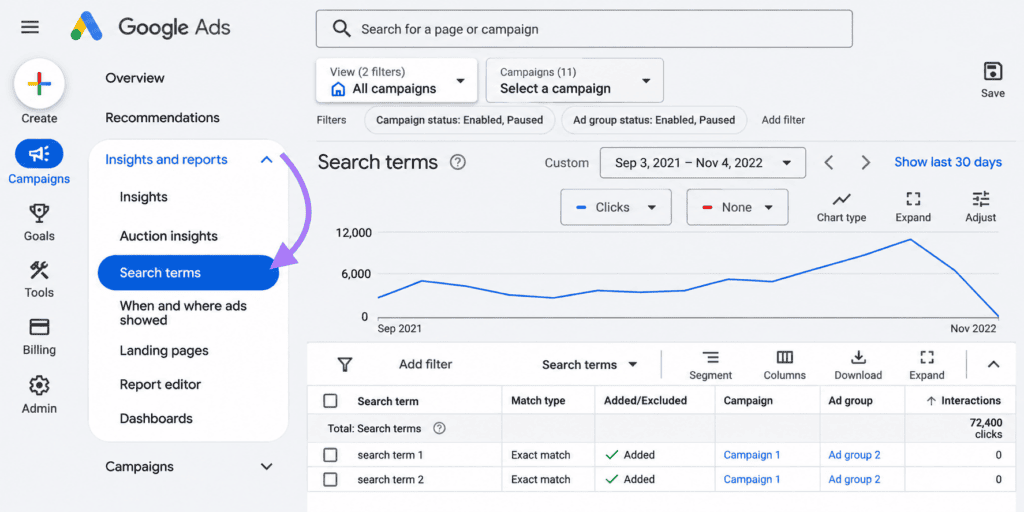
To reach the Search Terms tab, go to Campaigns, choose Insights and Reports, click Search Terms, and look for the match type column in the report.
One Important Detail About Google Ads Report Editor
There is another detail advertisers should know.
Ginny Marvin says the new Search Terms match type field currently needs the Search Terms column to be included in a Report Editor report to return all match types, including AI Max.
To find these fields in Report Editor, go to Campaigns, choose Insights and Reports, and click Report Editor. Then open or create a report, search for the search term match type fields in the available fields list, and add them to your report.
Without the search term column, summary tables may not show all match types correctly.
What Should Google Ads Advertisers Do?
I would recommend checking these fields before building or updating Google Ads reports.
A few things worth doing:
- Review the field names in Report Editor before selecting one.
- Use the field based on whether you are analyzing the Keywords tab or Search terms tab.
- Include the Search term column when you need the new field to return all match types.
- Check your existing reports if you have saved reporting templates that use the field.
For assistance with Google Ads reporting and campaign performance, contact the WhiteDigital team for expert support.